Search This Blog

Showing posts with label Useful tricks. Show all posts

A nifty trick to fix your driver problems for GADMEI USB TV BOX in Windows 7

Jul 28, 2013
LINKS ARE TEMPORARILY DISABLED. WILL BE RE-HOSTED IN A FEW DAYS.
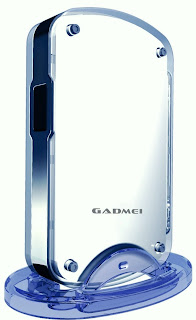

 Follow this easy set of instructions: 

  1. First download these files, if you DO NOT already have them.
    • USB TV BOX 3.0[GLP].zip [ All CD content : 40.4Mb ]

    • Win7Drivers[GLP].zip [ GADMEI Win7 Drivers : 138Kb ]

  2. Extract the files from  USB TV BOX 3.0[GLP].zip , and install GADMEI USB BOX 3.0 software. Install by running  autorun.exe  inside the extracted folder.

  3. XP & Vista users, restart & thats all!
    If you are running Windows 7, do not restart yet!

  4. Extract  Win7Drivers[GLP].zip  and paste the files inside the same folder where you installed the TV box software in Step 2.
     example: If you installed in E:\Gadmei , paste it inside that folder.

  5. Now go to Control Panel > Administrative Tools > Computer Management > Device Manager > Select the 'USB TV DEVICE' with a question mark sign.

  6. Right click on it & select 'Update Driver Software' > Browse my computer for driver software > 'Browse' and select the place where you pasted all the  drivers extracted in Step 5.   In my case, E:\Gadmei 

  7. Okay then, thats it! Congratulations, you have succeeded in fixing your 'wittle' GADMEI problem in Windows 7.
 Do share and spread this to let more people know & help them! 
Bookmark us for another bag of tricks coming soon! 
Still confused? Catch the detailed version of this trick, click here! 

 COMMENTS: 
Read more ...

Boost Your Internet Speed Without Software

Jul 27, 2013
FACT: 
Did you know that about 20% of your internet bandwidth is reserved by Microsoft. 

Uses of Reserved Bandwidth 

  • Windows Automatic Updates rely on this reserved bandwidth. 
  • Fast loading Microsoft Websites 
  • Sending Error Reports 
  • Online Help support in Microsoft Office 

Your precious 20% internet bandwidth is not doomed yet.... 

 The Remedy 

  • Start >> Run 
  • Type gpedit.msc 
  • This opens the Policy Editor 
  • Now, Local Computer Policy >> Computer Configuration 
  • Then, Administrative Templates >> Network 
  • Now, click on QoS Packet Scheduler 
  • Now, on Right hand side 
  • Double Click Limit reservable bandwidth 
  • Now in Setting Tab  


 NOTE: 
It says : Not Configured 
Reality : The Explain Tab says "By default, the Packet Scheduler limits the system to 20 percent of the bandwidth of a connection" 

 ** So, on Setting Tab select Enabled **
 Now, change Bandwidth limit (%) to 0 (Zero)  

 NOTE: 

Misconcept: This don't means that you won't be able to communicate with Microsoft or any its services !!! 

Actually: This reserved Bandwidth is only to accelerate Microsoft internet connections more than other connections !!! So you can actually make good use of it, instead of letting it rot like a bank deposit.

Click OK !!!   That's All !!!

If you still have problems, you can read a more detailed version >>here<<

Enjoyed this post? Let us know how much. Just drop a comment below!

 COMMENTS: 
Read more ...

Lock Your Folders !

Jul 27, 2013
You can lock and unlock your folder with this simple trick !

Procedure : 

  • Make a folder on the desktop and name it as  folder 
  • Now, open notepad and write:
 ren folder folder.{21EC2020-3AEA-1069-A2DD-08002B30309D} and now (Notepad Menu) File>save as. 
  • In the 'save as' name it as lock.bat and click save ! (Save it on Desktop) 
  • Now, again open notepad again and write:
 ren folder.{21EC2020-3AEA-1069-A2DD-08002B30309D} folder and now (Notepad Menu) File>save as. 
  • In the 'save as' name it as key.bat and click save ! (Save it on Desktop) 
  • Now, double click lock.bat to lock the folder and now if you open your folder, control panel will open up! 
  • Now, double click key.bat to open the folder and now if you open your folder, you can access your data inside the folder again ! 
  • Lock your folder and hide the key.bat somewhere else on your hard disk ! 
  • Whenever you want to open your folder just paste the key.bat on desktop and open your folder using it, Simple !
There are variants fot this trick too! If you want them or the details about how  this trick works, you can ask us or wait for a post to me made about it.

Enjoyed this post? Please drop a comment!

 COMMENTS: 
Read more ...

Hide Files in Image Files !!!

Jul 27, 2013
Sometimes we are eager to hide some files on the system !!!
 (I won't ask Why ???)  Its a simple trick

Here it is :  

  • You require WinRAR installed on your PC for this trick. 
WINRAR is NOT mandatory, any other compressing software like Power Archiver is also okay!
  • First add your files to .rar and i.e. say files.rar 
  • Say you have a image as img.jpg 
  • Now, save files.rar and img.jpg in c:\ drive. 
  • Click start >> Run 
  • Type cmd.exe 
  • Now in command prompt type cd\ 
  • Type  copy /b img.jpg + files.rar new.jpg
where,
copy = command
/b = attribute
img.jpg = Your desired image file
+ = attribute
files.rar = rar file
new.jpg = the newly created file
  =spaces 


Please Note! 

  • This command will concatenate the two files into the new file new.jpg 
  • Don't type files.rar + img.jpg instead of  img.jpg + files.rar 
  • Now, (size of new.jpg) = (size of img.jpg) + (size of files.rar) . 

 *** Mission Accomplished !!! ***  
Now, we have new.jpg consisting of both img.jpg and files.rar .  

Accessing the files :  

  • Double click new.jpg and img.jpg can be viewed.  
  • Now, to access files.rar : # Right click on new.jpg 
  • Select Open With 
  • Choose Program... 
  • Select WinRAR archiver. 
  • Now, simply Extract your files !  

Enjoyed this post? Please drop a comment.

 COMMENTS: 
Read more ...

How to make a batch file?

Jul 27, 2013
Before we explain the ways of making a batch file, we will give a brief introduction to batch file. 
<Skip this if you know already>

So what is a batch file?

A executable file that can perform DOS commands is called a batch file.

In Ms.DOS, there are a set of commands used to perform various tasks. If you open Ms.DOS and type the commands directly there, it is called an internal command. 

Making and using a batch file is called using external commands, because the user does not need to actively enter the commands. A set of predefined commands will be automatically executed by the batch file.

How to make a batch file?

If you already know how to use Ms.DOS commands, you can simply open "notepad.exe" from run and type the commands line by line. Here's an example.


  • Open "notepad.exe" from run or start menu.
  • Type this inside:
@echo off
title Example of batch file
echo Hello World
echo.
pause
exit
  • Save it as sth.bat somewhere. 
  • Go to the place where you saved it. 
  • Open the file by double clicking it.
  • It will display "Hello World" and ask you to press any key to  continue.
  • Once you press a key, it will exit.

This was a very basic DOS batch file. If you are proficient enough, batch files can be very lethal too. They can be easily used for pranking, making viruses, or even a very interesting program.

Here's an example. You should try it. Download here! Click me!


Any Queries? Please drop a comment to let us know.

 COMMENTS: 


Read more ...

Create a Virtual Drive in Windows

Jul 27, 2013
This is a simple trick to create virtual drive in windows.

By using this trick, you can access your favorite folder as a drive in your computer. This trick make use of Ms.DOS in your computer.


If you are using XP/Vista or any other OS before Windows7:
  • Goto Start button
  • Click on Run
  • Type "cmd.exe" without quotes & press enter
  • Then on the black cmd.exe screen, type : 
subst A: E:\folder & hit enter
where,
 subst = command in DOS fro substitution

A: = is your desired drive. You can choose any drive that is not allocated.
E:\folder = is the path of your folder that you want to change as drive.


  • type "exit" to exit from Ms.DOS
Congratulations, you have successfully created a new drive. This drive is basically a shortcut, but the computer will treat it as any other drive. It is actually a virtual drive.

Uses?
  • If you have tried to install any old programs like QBASIC , C++ etc, you will notice that they require [A:] which is floppy drive. If you do not have floppy drive, you can mount the files in A: drive using this method.
  • You can fool your friends too, because the v.drive actually shows the space of your whole drive from where it is mounted. If it is mounted from a drive having 100GB space, the virtual drive will also show another 100GB. This is not REAL space. But your friend will never know.
How to delete a virtual drive?
  • Usually it deletes itself on restart. You can prevent this by making a batch file & keeping it in startup folder.
  • Manually, you can delete it by opening cmd.exe like before, and typing:
subst A: /d 
where,
subst = command
A: = The drive that you created.
/d = delete attribute.

Did you enjoy this post? Please drop a comment to let us know.

 COMMENTS: 
Read more ...

Block / Unblock Websites without Software

Jul 27, 2013
Many times in schools, colleges & offices surfing some sites like facebook,etc are banned !
To overcome this you can unblock these or block some other websites and play pranks !   

Do The Following : 

For eg you want to block www.xyz.com ! 

 * Open the folder C:\WINDOWS\system32\drivers\etc 

* There you will find a file named HOSTS

* Click on the file and press SHIFT and now right click on it . 

* From the right click menu select Open with . 

* Now, select Notepad to open the file from the list !

* Now, in the file under the line 127.0.0.1 localhost add another line as 127.0.0.2 www.xyz.com. 

* Now, File>>Save !  Now, open your web browser and try openning www.xyz.com , it will not load !  

To unblock sites just do the opposite !

 COMMENTS: 
Read more ...